Cloud storage is helping in organizing and accessing large creative libraries. Dropbox is the main area where product images, footage, presentations, and other useful media can be stored. This offers creators direct access to stored assets instead of transferring them back and forth. Pippit’s video creation workflow is streamlined and supported with cloud-based references.
Read the full article to find out how Dropbox links work in Pippit’s AI video generator and how to use Dropbox assets without disrupting the creative process.
Why Reference Media Matters When Generating AI Videos
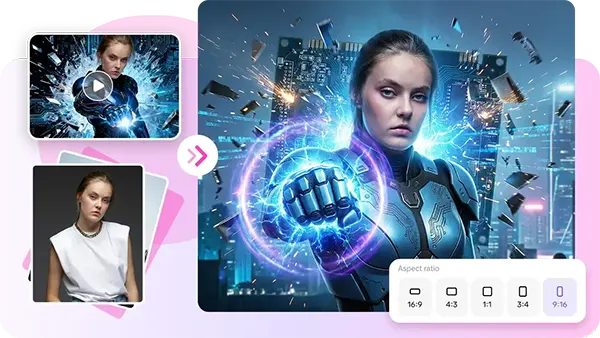
Text prompts tell intentions; visual prompts show details more directly. A reference image can include product shape, product colors, product packaging, clothing, or the environment. Pippit’s AI video generator can use such references in addition to written instructions. Using reference media can aid with product presentations, social clips, ads, presentations, and creative ideas. It can also be used for handling visible properties throughout generation. But good content doesn’t make up for the lack of good creative direction. A helpful hint should explain the reference. It should also give details of the needed movement, setting, mood, framing, and outcome. This way, there is less confusion regarding the media offered and the video in question.
Using Audio References in the Pippit Workflow
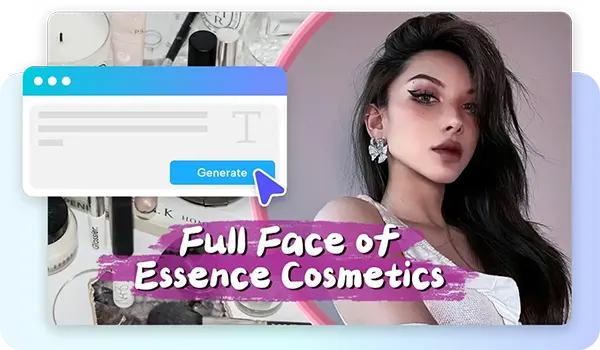
In Pippit’s AI creation process, cloud-based media can serve purposes beyond just offering visual references. SeedAudio 2.0 allows creators to use text, reference audio, video, or a combination of all three of these inputs to create full soundscapes. Dialogue, ambience, sound effects, and music can be used by the model; with the help of timestamp controls, important audio moments can be placed correctly. Reference voices can also help to ensure consistent character voices for generated dialogue. In some cases, audio can increase existing video footage and does not need to be captured again. This makes reference-based audio great for dubbing, localization, narration, ads, and other video works that need coordinated sound.
How to Use Dropbox Links with Pippit’s AI Video Generator
Here are three steps for AI video editing and generating:
Step 1: Connecting Dropbox Content
- Create a Pippit account via Google, TikTok, or Facebook.
- On the left-side menu, click on ‘More’ and select ‘Video generator’.
- Select an AI model, including Dreamina Seedance 1.0, Dreamina Seedance 2.0, Dreamina Seedance 2.0 Fast, Dreamina Seedance 2.0 Mini, and Dreamina Seedance 2.5.
- Write down the video description in detail.
- Choose your video duration, language, subtitling, and resolution.
- Press ‘+’ to include pictures and videos from Dropbox or any other devices or links. After you add media, click “Generate”.
Step 2: Video Creation from Dropbox media
- Once you press “Generate”, the Pippit video generator makes the video for you based on your prompt.
- The AI creates transitions, controls the speed, inputs captions, creates avatars, sets the voice, adds lyrics, and improves the video.
- Watch the draft and compare it with your sources.
Step 3: Finalizing Video
- To save the video, press the “Download” button and select “Regenerate” to create another version. Click the “Edit more” option at the bottom of the video to edit.
- Change and add new captions, characters, size, color, and effects.
- Click “Export” when your edits are complete.
- Click “Publish” for TikTok, Instagram, or Facebook, or select “Download” with your desired format, resolution, frame rate, and quality.
Adding Dropbox Assets Without Disrupting the Creative Process
A simple sequence can keep cloud-based asset selection organized and meaningful:
- Choose the source: Identify the exact Dropbox image or video required.
- Access the asset: Use the “+” option to locate the available Dropbox source.
- Match the prompt: Describe how the selected reference should influence the result.
- Check relevance: Remove unwanted assets that could introduce visual confusion.
- Generate: Submit the completed prompt and reference media for processing.
- Review: Check the generated draft and identify areas requiring refinement.
It also removes unnecessary media that could compete with the main visual direction.
Managing Spatial References for AI Video Creation
Spatial references can support creators in creating clearer relationships between environments, objects, characters, and camera viewpoints. This is the direction that Seeworld is pursuing, and it is based on 3D world and scene understanding, rather than viewing each frame as a stand-alone image. When creating AI video content, arrange references around the environment, focal point, object placement, scale, and from what point the video will be watched. Do not add unrelated visual inputs that can create conflicting spatial cues. Pippit’s 3D Director Studio can be used in the same way to explore environments, camera positions, framing, and scene relationships before using selected views for video generation, which can be helpful for pre-production.
Combining Dropbox References With Detailed Text Prompts
When text explains what the cloud is used for, cloud references are more useful. Don’t just label an uploaded product or refer to it as “the reference.” Instead, describe which features should be preserved in the generation. If applicable, go to product appearance, positioning, movement, environment, framing, and lighting. The image of a product can define appearance; for example, the prompt defines movement. A scene reference may be used to set up the composition, while the prompt is used to explain the weather and/or camera movement. This complementary structure offers clear responsibility for each input. It does not force the reference to be all-creative. These prompts can make it more accessible for repeatable content workflows to use cloud-based assets.
Editing the Generated Video After Cloud-Based Asset Selection
Choosing a Dropbox file is not the end of the creative process. The videos that are designed may need to be tweaked before being published or distributed. After creating, Pippit’s “Edit more” option opens other editing controls. Manual caption changes can aid to enhance the accuracy, legibility, and timing. Text controls for size, color, position, and alignment can help create greater visual hierarchy. Filters and effects can be used to give uniformity in the presentation from scene to scene. Pacing can be increased by background music, and emotional tone can be defined by music. Removing backgrounds can help highlight the subject if the original background is distracting. If the created structure needs significant changes, then regeneration might be a cleaner solution. Small problems are often better solved by hand than by entire regeneration. Settings should be the same as the final export platform and quality. Pippit provides direct publishing to supported social platforms as well.
Conclusion
During AI video creation, Dropbox can streamline access to important reference media. Pippit holds the cloud assets together with written prompts, generation, editing, and export—all in one workflow. Relevant references offer visual context, and precise prompts set up creative intent. Unnecessary media is not used to ignore the direction. Once the generation is done, there are other options to perfect the outcome: Editing and regeneration. This workflow can reduce redundant file transfers and still ensure creative assets are at hand. It also establishes a sensible link between cloud storage space and streamlined video production.
FAQs
Q1. What is the disadvantage of Dropbox?
Ans: The disadvantages of Dropbox are its limited storage and expensive paid plans.
Q2. Is there a better option than Dropbox?
Ans: Yes, there are other alternatives to Dropbox, such as Google Drive and Microsoft OneDrive.
Q3. What is the monthly fee for Dropbox?
Ans: The monthly fee for Dropbox ranges from $9.99 to $24+ per user per month.