Deleting the wrong video could make your excellent day shooting go south in a flash. It might be a GoPro video taken during an adventure, a DJI video taken during a project, or an Insta360 video that you cannot duplicate again. But that does not mean that the video will be unrecoverable after deleting the data.
In many cases, the deleted data remains on the memory card until new footage overwrites it. What you do next matters. Stop recording, avoid formatting the card, check for backups or copied files, and then choose a recovery method based on the condition of the storage.
Here is what should be done: stop recording, do not format the card and then pick up a way to restore videos according to the condition of the storage.
What to Do Before You Try Video Recovery
A video that has been deleted on the SD card doesn’t always delete immediately. In many file systems, deletion removes the file’s reference and marks its space as available. The underlying data may remain until the camera writes new data over those sectors.
This is why your initial steps are important, rather than how fast you install the video recovery software.
As soon as you notice missing footage:
- Turn the camera off and stop recording to the affected card.
- Remove the SD or microSD card if the device allows it.
- Do not format the card, even if the camera says formatting may fix it.
- Do not run CHKDSK, Disk Utility First Aid, or another repair operation before recovering important files.
- Do not save recovered videos back to the same card.
Use a card reader to access the SD card of the camera, instead of attaching the camera via USB. Some cameras expose storage through protocols such as MTP rather than giving recovery software direct block-level access to the card. That can prevent a deep scan from working properly.
If you also lost still images, the same precautions apply when recovering deleted photos from a camera SD card.
Check Whether Another Copy of the Video Already Exists
Before scanning the card, make sure that there isn’t a duplicate of the missing clip. Action-camera workflows often create more copies than you realize: cloud uploads, phone downloads, proxy files, imported media, and protected folders can all survive after the original disappears.
Begin searching from the locations that fit your particular device and workflow:
| Footage source | Places to check first |
| GoPro | GoPro/Quik library, cloud media if you use cloud upload, phone gallery, previous computer imports |
| Insta360 | Insta360 app album, Recently Deleted where available, Insta360+ cloud storage |
| DJI Action or Pocket | DJI Mimo downloads, phone gallery, computer imports, companion low-resolution files |
| DSLR or mirrorless camera | Import folders, editing project folders, external drives, cloud backup |
| Dashcam | Protected or locked clips folder, mobile app downloads |
| Phone | Photos or Gallery Recently Deleted, iCloud, Google Photos, local backups |
| Editing project | Proxy folders, copied media, optimized media, project storage |
This check is worth doing even if you deleted the file on the camera. You may have downloaded it to your phone or copied the card earlier. Trash can functions may vary depending on the platform, so do not presume that all action cameras use the same trash can folder.
How to Recover Deleted GoPro Videos and Other Action Camera Footage
In case there is no copy available for use, continue with the process of recovery. The right method depends on whether the file was simply deleted, the card was formatted, the storage is unstable, or the card is physically damaged. Start with the least invasive option and avoid repair operations until you have copied or recovered the footage you need.
Method 1: Restore the Video From an App or Cloud Backup
The catch: this works only if the video was uploaded, downloaded, or synced before the original copy disappeared.
This is the safest way to recover deleted GoPro video or footage from another camera because you do not need to modify or scan the original card. Check the camera maker’s mobile app, any cloud service you use, your phone’s photo library, and folders where you previously imported footage.
If you are an Insta360+ owner, then the service provides you with a Recently Deleted option for eligible cloud media. If you use GoPro cameras, you should check out the Quik library and your cloud media on the service. If you have a DJI camera, then you should consider checking out DJI Mimo downloads and the phone gallery instead of the microSD card only.
If you find a copy, export it to normal storage before you clean up anything else. Open the file and scrub through several points in the timeline to confirm that the whole clip is readable.
Method 2: Scan the Memory Card With Video Recovery Software
The catch: no recovery app can restore sectors that have already been overwritten by new recordings.
When the original clip is gone, and there is no backup, a card scan is usually the next step. A suitable video recovery tool should support the file system used by your card, common camera video formats, and previews so you can inspect results before saving them.
For action cameras, choose FAT32 or exFAT formats, MP4 or MOV recovery, and H.264/H.265. It might be crucial to choose camera-specific file system repair, as large and high-quality videos can be divided over various parts of the memory card, which means that standard scanning may detect pieces of the file but won’t restore it into a working video.
For the walkthrough below, we use Disk Drill because its Advanced Camera Recovery mode is designed specifically for fragmented footage recorded by cameras. Instead of treating a large video as a single contiguous file, it analyzes the card for video fragments and attempts to reconstruct them in the correct sequence.
The module is compatible with video from devices such as GoPro, DJI, and Insta360, making it a perfect match for the action camera recovery process discussed in this paper.
If your case is specifically GoPro-related, this separate guide explains how to recover deleted GoPro files from the memory card. You can also compare common tools and recovery approaches on this data recovery software community wiki before installing anything.
Steps to Recover Action Camera Videos on Windows
- Remove the card from the camera and connect it through a reader. Make sure the card is detected by Windows. If it prompts for formatting, decline the prompt.
- Install the recovery application on another drive. Do not install software to the affected card or copy new files onto it.
- Open the app and select the memory card from the list of devices. Check the capacity carefully so you do not scan the wrong disk. If the software offers a camera-video or advanced-video mode, use it for high-resolution action-camera footage.
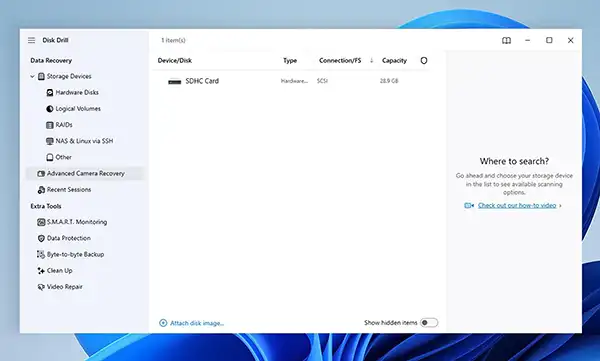
- Start the scan. Let the scan complete when possible. Stopping early can leave fragmented or harder-to-find clips undiscovered.
- Filter the results by video type and preview the files. Find the type that is compatible with the camera, such as MP4, MOV, among others. Note that the filenames could have been deleted or altered; therefore, use other parameters to identify them.
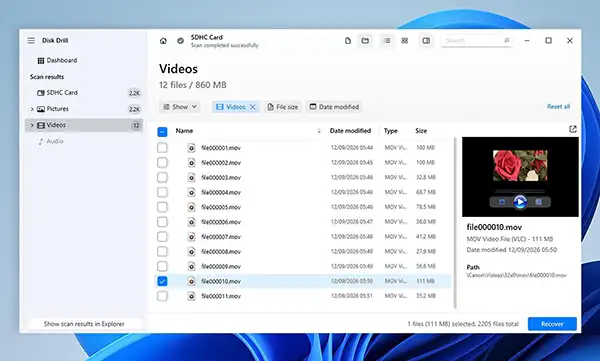
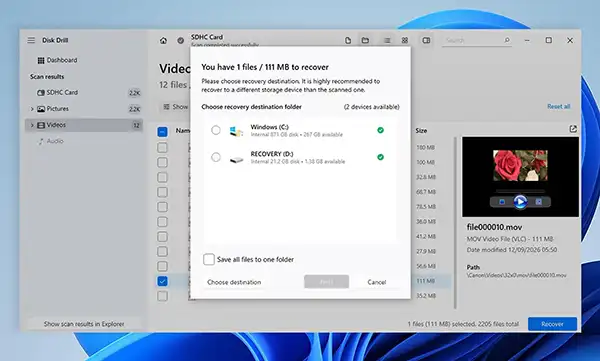
- Recover the selected clips to another drive. Save them to your computer’s internal drive or an external SSD, not back to the source SD card.
- Open the recovered files before reusing the card. Test the beginning, middle, and end of important clips. A file can appear in scan results but still contain damaged or missing data.
Steps to Recover Action Camera Videos on Mac
On macOS, use the same sequence: connect the card through a reader, scan it, preview the results, and recover selected footage to another disk. macOS may ask you to grant the app access to removable storage.
Do not run Disk Utility First Aid prior to recovering your critical deleted videos since First Aid rebuilds file system structure and doesn’t undelete files.
Method 3: Look for Proxies or Imported Copies From Your Editing Workflow
The catch: a proxy can preserve the shot, but it is usually not a full-quality replacement for the original camera file.
If the footage reached an editing system before it disappeared, stop looking only at the card. Your editing workflow may already contain another playable copy.
Adobe Premiere Pro proxies are low-res versions of high-res videos. Make sure that you verify the proxy destination and the ingest folder into which Premiere Pro copied your source media.
Final Cut Pro offers another path if you imported with Copy to Library selected. This option duplicates the imported files into the library storage location, while optimized and proxy media can live in the library or another location you set. DaVinci Resolve users should check the Proxy Media location and folders used for copied or transcoded footage.
Even if the original material has been lost, a generated proxy can prove adequate to retrieve a shot, construct an edit, or create a lower resolution emergency export.
Do not confuse editing caches with media copies. Look specifically for copied source media, transcoded media, optimized files, or playable proxies.
Method 4: Create an Image of an Unstable Memory Card Before You Scan It
The catch: imaging helps with unstable storage, but it does not repair physical damage or restore sectors the device can no longer read.
A healthy card can usually be scanned directly. A card that disconnects, produces read errors, becomes extremely slow, or appears only intermittently needs a more cautious approach.
A sector-by-sector image is an exact duplicate of the entire content of the card saved on your PC in one file. The image of the file will be scanned instead of the actual card itself, meaning that the problematic hardware will be read once rather than multiple times.
This is also a useful way to tell two problems apart. If the image is created cleanly and the scan finds nothing, you have a deleted file problem, and the data is probably overwritten. If the card fails partway through imaging, you have a failing storage problem, and that belongs in the next method.
Method 5: Send the Card to a Professional Data Recovery Service
The catch: professional recovery is for valuable footage or hardware problems, not a guaranteed fix for overwritten data.
A recovery lab should be chosen when the card has physical damage, displays incorrect capacity, disconnects constantly, or cannot be reliably imaged. Commercially valuable footage where further do-it-yourself attempts are not considered acceptable is also a situation where the laboratory work is recommended.
Tell the lab whether the footage was deleted, formatted, interrupted during recording, or lost after physical damage.
No lab can reconstruct data that has been completely overwritten with new recordings. That is why stopping the camera immediately is an important step in any video recovery case.
What If the Recovered Video Won’t Play?
Even when the file has been found, there are no guarantees that a usable video has been successfully recovered. Files from action cameras can be very big and fragmented, and thus it may happen that the scan will recover just a portion of the file or will reconstruct the MP4 container wrongly.
A recovered clip may fail because its MP4 structure is damaged, some sectors were overwritten, or the recovery tool rebuilt a fragmented recording incorrectly.
Try this order:
- Make a copy of the recovered file. Keep the first recovered version untouched and perform repair attempts on duplicates.
- Test the file in another player. One player may reject a damaged container that another can partially read. If several players fail at the same point, the file itself is more likely to be incomplete.
- Try a video repair tool on the copy. For tools that support reference-based repair, use a healthy clip recorded by the same camera with the same resolution, frame rate, codec, and other settings when possible.
- Check for an editing proxy or companion video. A lower-resolution copy can preserve the content even if you cannot restore the original master.
It is handy when dealing with Osmo Action 6, Action 5 Pro, Action 4, Action 3, DJI Action 2, DJI Pocket 2, and Osmo Pocket 3 cameras. According to DJI, in cases where the original .MP4 file is deleted but LRF is still there, changing the suffix of LRF to .MP4 creates a low-definition file.
It will not replace the master, but it can preserve an otherwise lost shot or reference.
A Safer Workflow for Footage You Plan to Edit
A workflow involving action cameras is too convenient for simply deleting a clip without ensuring that there is another one available. It is a safer workflow that is really easy:
- Copy the full card before you start deleting individual clips.
- Keep at least two copies of important footage until the project is delivered.
- Open several imported clips and confirm they play before formatting the camera card.
- Format reusable cards in the camera after backup rather than deleting clips one by one during a shoot.
- Keep the original card untouched until a remote editor or client confirms that the transfer arrived correctly.
- Store proxies separately from originals so you can tell immediately which version you still have.
When giving your material to an editor, decide on whom will keep the originals and for how long. The folder created for the project must not be the sole copy left after completion.
Conclusion
In order to restore your lost videos on your action camera, you will have to stop recording and look for cloud backups, phone backups, imported videos, and proxy videos. In the event that the original video file is lost from the card, take out the card and do a data scan using Disk Drill software.
Its Advanced Camera Recovery mode is particularly useful for fragmented camera footage that may be harder for a standard scan to reconstruct. Create a disk image first when storage is unstable, and use a recovery lab for physical failure or irreplaceable footage.
Frequently Asked Questions
Q1. Can you recover a deleted GoPro video after deleting it on the camera?
Ans: Often, yes. If the card has not been overwritten, recovery software may still find deleted footage. Remove the card, stop recording, and scan it through a card reader. Also check Quik, cloud storage, phone downloads, and previous imports before starting a scan.
Q2. Can you recover GoPro videos after formatting the SD card?
Ans: Sometimes. A quick format may leave recoverable data behind, while secure erasure or subsequent recording can overwrite it. Do not record anything else to the card. Scan it or create an image first if the storage behaves unreliably.
Q3. Why does my recovered GoPro video not play?
Ans: The file may be incomplete, fragmented, or missing important MP4 container data. Test a copy in another player, then try video repair. If reference-based repair is available, use a healthy clip from the same camera with matching recording settings.
Q4. Can I recover action camera videos without recovery software?
Ans: Yes, if another copy exists. Check cloud storage, the camera app, your phone gallery, computer import folders, editing proxies, and copied project media. If the only remaining copy was deleted from the SD card, recovery software or a professional service may be necessary.
Q5. Can I recover deleted videos after recording new footage?
Ans: Possibly, but your chances drop because new footage can overwrite the space that held the deleted video. A new recording does not necessarily overwrite every deleted file immediately, so stop recording and scan the card rather than assuming everything is gone.
Q6. How long do I have to recover deleted camera videos?
Ans: There is no fixed countdown for data left on an SD card. A deleted file can remain recoverable until its sectors are overwritten. The real risk is new writes, not the number of hours or days that have passed.