
Losing your PSD files can actually be irritating, especially when it involves hours of design work and dedicated effort. Fortunately, losing or accidentally deleting a Photoshop file does not mean it has gone forever. There are various methods to recover it.
The right method to recover those files depends on where the file was stored, how it was deleted, whether you had a crash of files or whether you had a backup. It is important to identify which method serves you best.
Keep reading to learn different ways to recover lost or deleted PSD files.
What to Do Before Recovering a PSD File
First, check whether the PSD was moved to another folder or is still in the Recycle Bin:
- Search for the file: Open File Explorer and search the likely project folders by filename or .psd. Check .psb too if you saved the project in Photoshop’s Large Document Format.
- Check the Recycle Bin: If you find the file, right-click it and select Restore to return it to its original location.
If nothing works and you have no backup, move to an image recovery tool. It scans and restores present files, except overwritten ones. Before using it:
- Avoid writing to the affected drive: Stop saving or downloading files to it, and don’t install recovery software there.
- Prepare a separate drive: Save recovered files to a different physical drive, not another folder or partition on the source disk.
If the PSD file was on your system, avoid using it further. This might overwrite files.
But in case of physical damage, vague noises or frequent disconnections, connect with a professional data recovery service. Repeated scans can overload the drive.
Recover Deleted PSD Files With Recovery Software on Windows
If the PSD is no longer in the Recycle Bin and you have no backup, recovery software can scan the drive for remaining file data. Disk Drill is an image recovery tool that supports PSD and PSB files. It lets you search scan results by filename or extension and preview supported files before recovery.
Note: Only 100 MB can be scanned and previewed freely with Disk Drill’s free Windows version. One needs to buy a premium plan for further recovery.
Disk Drill often ranks among the top choices in data recovery software comparisons, including this comparison of data recovery tools.
Before starting, one must be aware that recovery chances are often minimal on internal SSDs with TRIM enabled. Once the data is said to be missing, no software can recover it.
Download Disk Drill for Windows from the official CleverFiles website. Install it on a different drive to avoid overwriting the deleted file, then open the program.
Choose the drive with PSD. Verify the name and capacity, and click Search for lost data. Move forward with Universal Scan and then click Review found items.
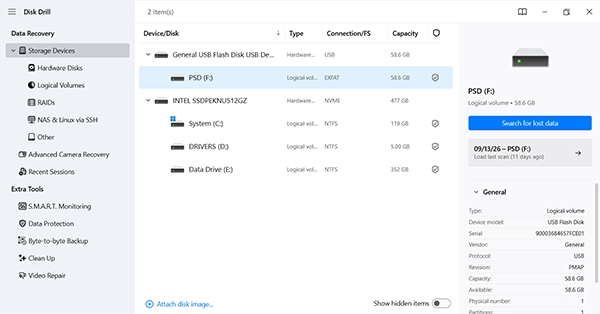
Selecting the USB flash drive to scan for deleted PSD files.
Type .psd in the search field, or search by filename if you remember it. For projects saved in PSB format, search for .psb instead. Check the results, including the Reconstructed section if the original file is missing. Files there may have generic names. Open a preview where available and use the checkboxes to select the projects you need.
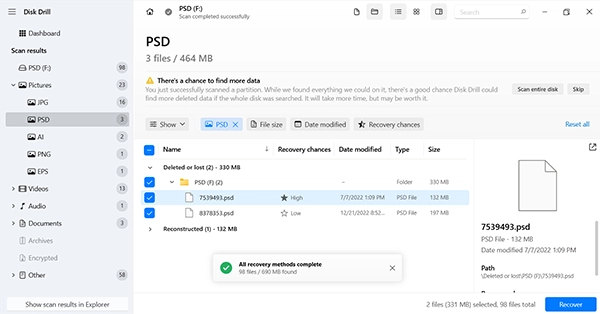
Choose Recover and select a folder on a unique physical drive. If USB flash drive scanning is done, save the file on the PC. For a computer’s internal drive, save to an external drive or USB flash drive.
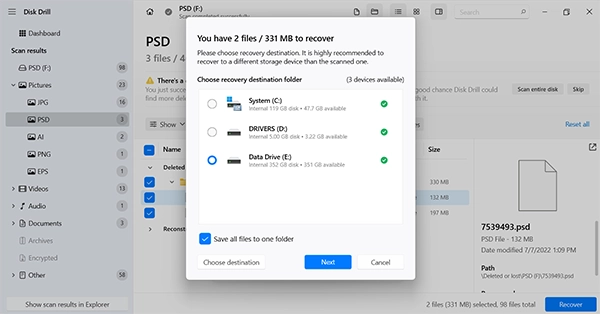
Selecting the computer’s E: drive to save files recovered from the USB flash drive.
Confirm the destination to start recovery. Once it finishes, open the PSD in Photoshop and check its layers, masks, and edits. A scan preview alone does not confirm that the entire project is intact.
To know more, visit this Reddit wiki page to explore discussions and ask queries.
Check for Existing Photoshop Recovery Files and Backups
The options below depend on recovery data or copies created before the file was lost. If you’re unsure whether any exist, check the relevant locations. Enabling these features now won’t restore earlier work.
Step 1. Check AutoRecover After a Photoshop Crash
If Photoshop crashed before saving changes, it might be in recovery data. This does not replace a deleted PSD.
- Reopen Photoshop and check whether a recovered document opens automatically.
- Review its contents to see which changes were preserved.
- Use File > Save As to save it as a separate file.
Check the previous version, if nothing works. For more recovery locations and fixing, you can look to the PSD file recovery guide.
Step 2. Check Adobe Cloud Documents
If you saved the project as an Adobe cloud document, check the same Adobe account you used while editing. A PSD saved only on your computer will not appear here automatically.
- On Photoshop’s home screen, go to Files > Your files and look for the cloud document.
- If you deleted it, open Deleted, click the document’s three-dot menu, and select Restore.
- Open the restored document and check its contents.
If the document is there and you want earlier edits, move in and select Window > Version History to check previous versions.
Step 3. Check Windows File History
File History might help file with PSD folder was backed up. Also, it may contain a previous version of the project that was overwritten by mistake.
- Connect the drive used for File History backups, or make sure the network backup location is accessible.
- Select Control Panel > System and Security > File History, then choose Restore personal files.
- Browse to the folder containing the PSD. Use the arrows to find a backup from before the file was lost, then select it.
- Right-click the Restore button, select Restore to, and choose a unique location to create a new copy.
If File History has no backup of the PSD, this method cannot restore it.
How to Prevent Losing Photoshop Files Again
Some smart settings and habits can save your future Photoshop projects:
- Enable crash recovery: In Photoshop, go to Edit > Preferences > File Handling and enable Automatically Save Recovery Information Every. Choose a short interval, such as five minutes. Save your work regularly with Ctrl + S as well.
- Back up your project folder: Set up Windows File History along with an external drive and ensure your PSD folder is a part of it. Also test that you can open the backup file.
- Keep versions before major changes: Use Save As to create a separate PSD before flattening layers or making extensive revisions. Simple filenames such as “product-v01.psd” and “product-v02.psd” help distinguish them.
At least, use a single backup on a different storage device. Various versions on the same drive won’t save work in case the drive corrupts.
Also, learn what all photographers need to know about cloud photo storage.
Conclusion
In the end, the recovery of any kind of file, whether PSD or photo, has the highest chances when the data has not been overwritten, and a reliable backup method is still there. Begin with simple checks such as File Explorer and the Recycle Bin before using recovery software.
Windows File History might also help if it was configured beforehand. Once the recovery process is done, maintain regular backups, save different versions and allow Photoshop’s recovery information to lower the risk of future accidents.
FAQ
Q1. Can You Recover PSD Files After Emptying the Recycle Bin?
Ans: Yes, sometimes. Unplugging the Recycle Bin does not always erase the file’s data instantly, so software may still recover deleted PSD files. However, overwritten data cannot be returned this way. On SSDs, TRIM can make deleted data go away even if you haven’t manually uploaded anything new.
Q2. Can You Recover Adobe Photoshop Files Without Photoshop Already Running?
Ans: Yes. Recovery software examines the storage drive, so Photoshop does not have to be installed to recover Adobe Photoshop files. You will need Photoshop or another supported editor to open and test the recovered PSD afterwards. Preview features in the recovery program may hinge on the software installed on your computer.
Q3. How Long Does Photoshop File Recovery Take?
Ans: Photoshop file recovery can require minutes or hours, based on the drive’s capacity, speed, connection, and condition. Even if you only seek one PSD, the software may choose to scan a large part of the drive to detect it. Use the scan’s progress message as an estimate rather than a fixed delivery time.